Upload content with a custom type
 Edit on GitHub
In this tutorial you will learn how you can upload content to a container with a custom type. We will look at how to upload other built-in types like Image or totally custom types that are inherited from the default File.
Upload basics
By default if you upload a file into a container in sensenet it will be created as a File. File is the built-in type for storing files in the content repository. This type's key field is a binary field, which contains the actual binary of the file. Learn more about the File content type in the concepts.
First lets check the default behavior of upload. Create your own document library for playing with the types. If you open your newly created library and start to add content to it, the add new dropdown list by default contains two types (File and Folder) and Upload.
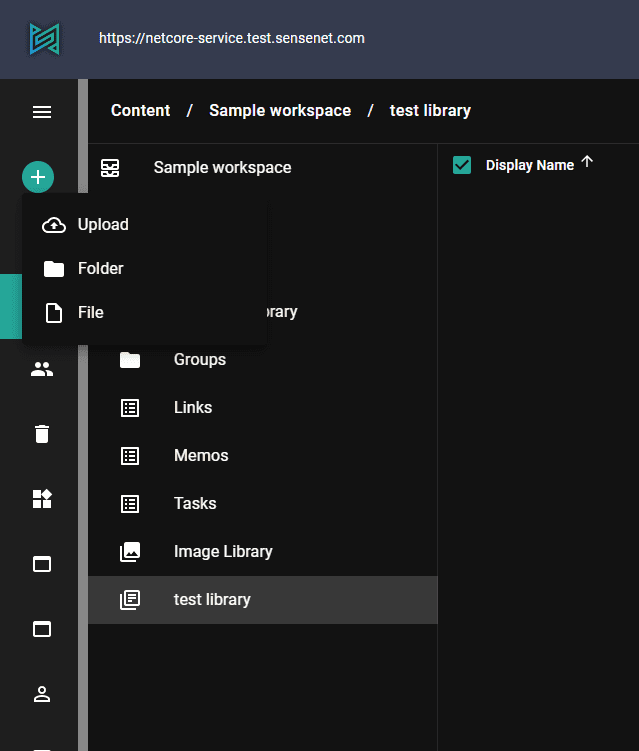
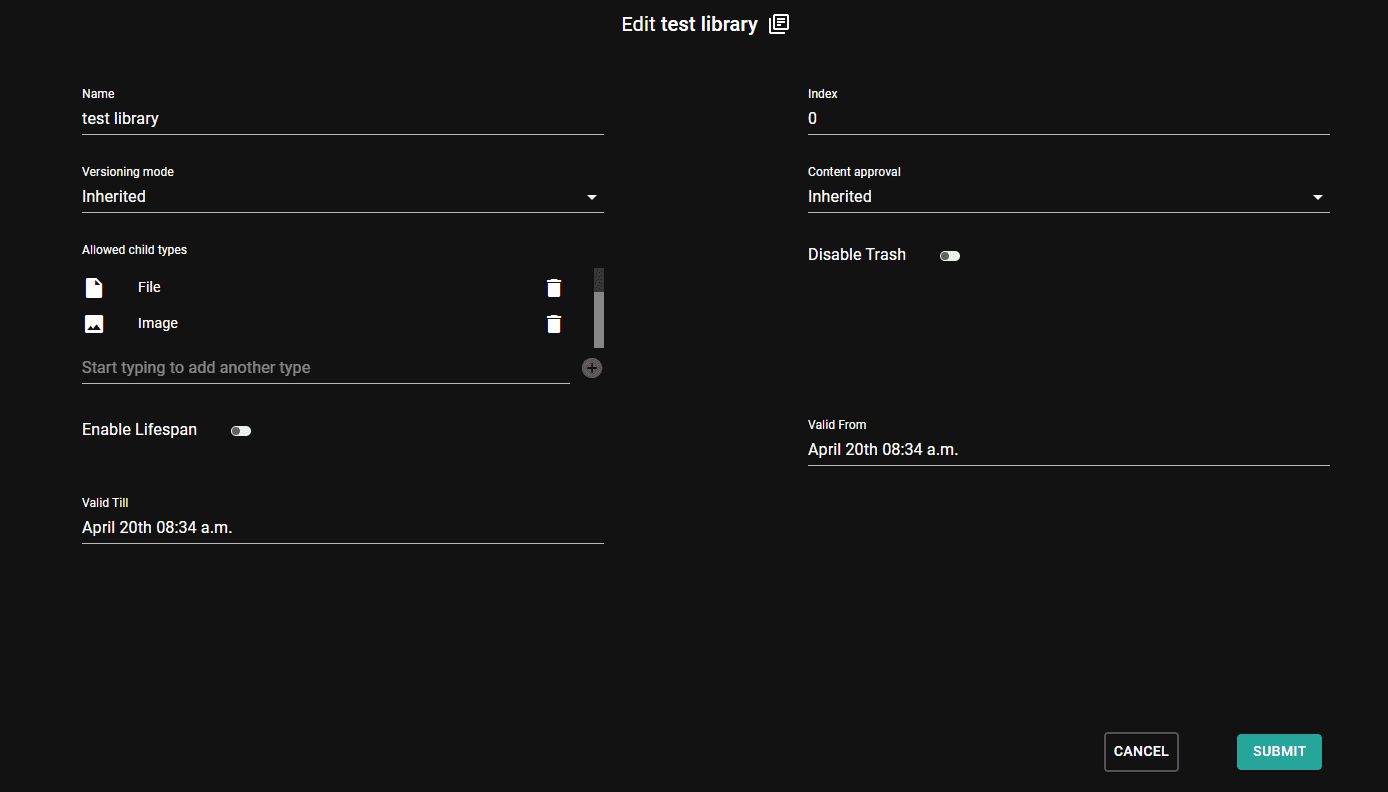
This three things comes from the value of the allowed child types field. The allowed child type list contains the types that can be used to create content in a container. Let's look at the types in the edit view of our library:
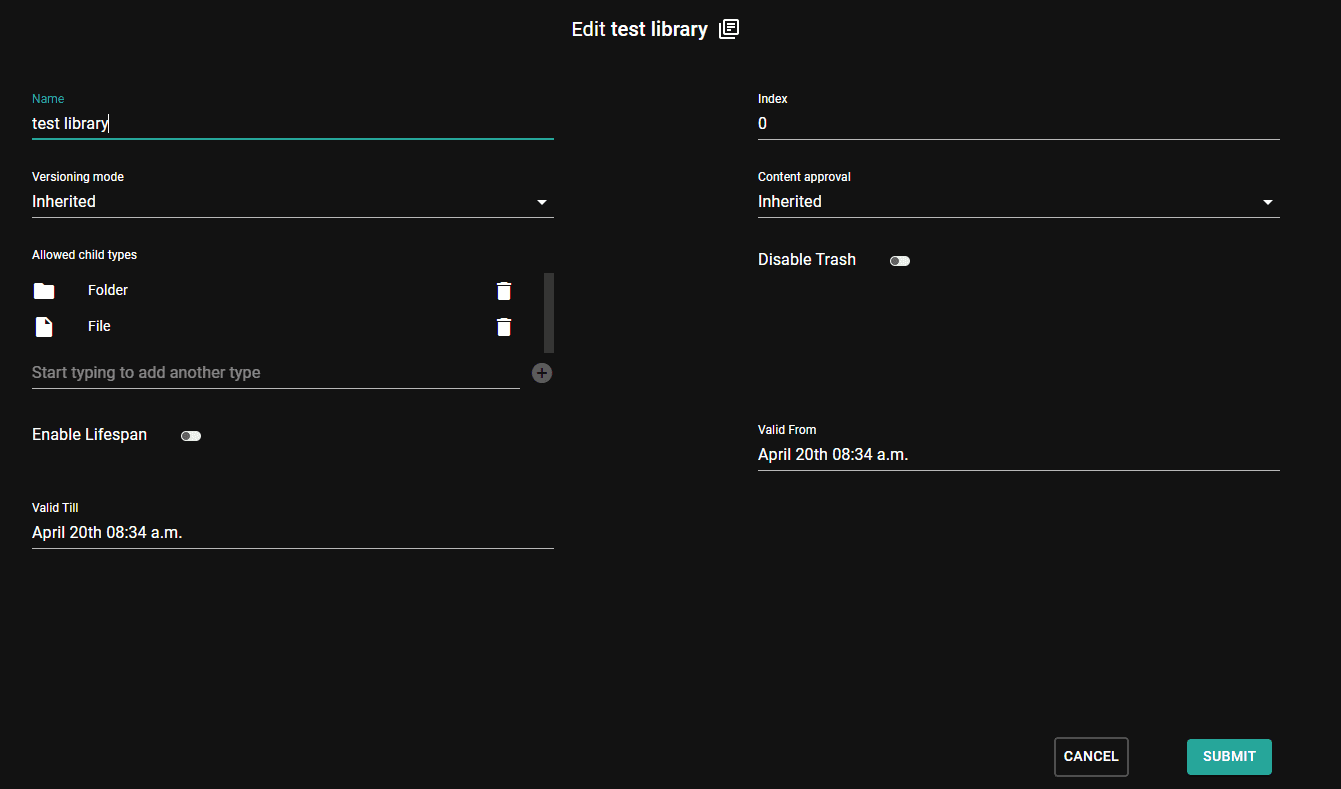
As you can see Folder and File types are available which means that if you upload a document it will be created as File whether it is an image or a Word document. The upload option is displayed based on if File or an inherited type is in the allowed child type list (there is an uploadable type allowed).
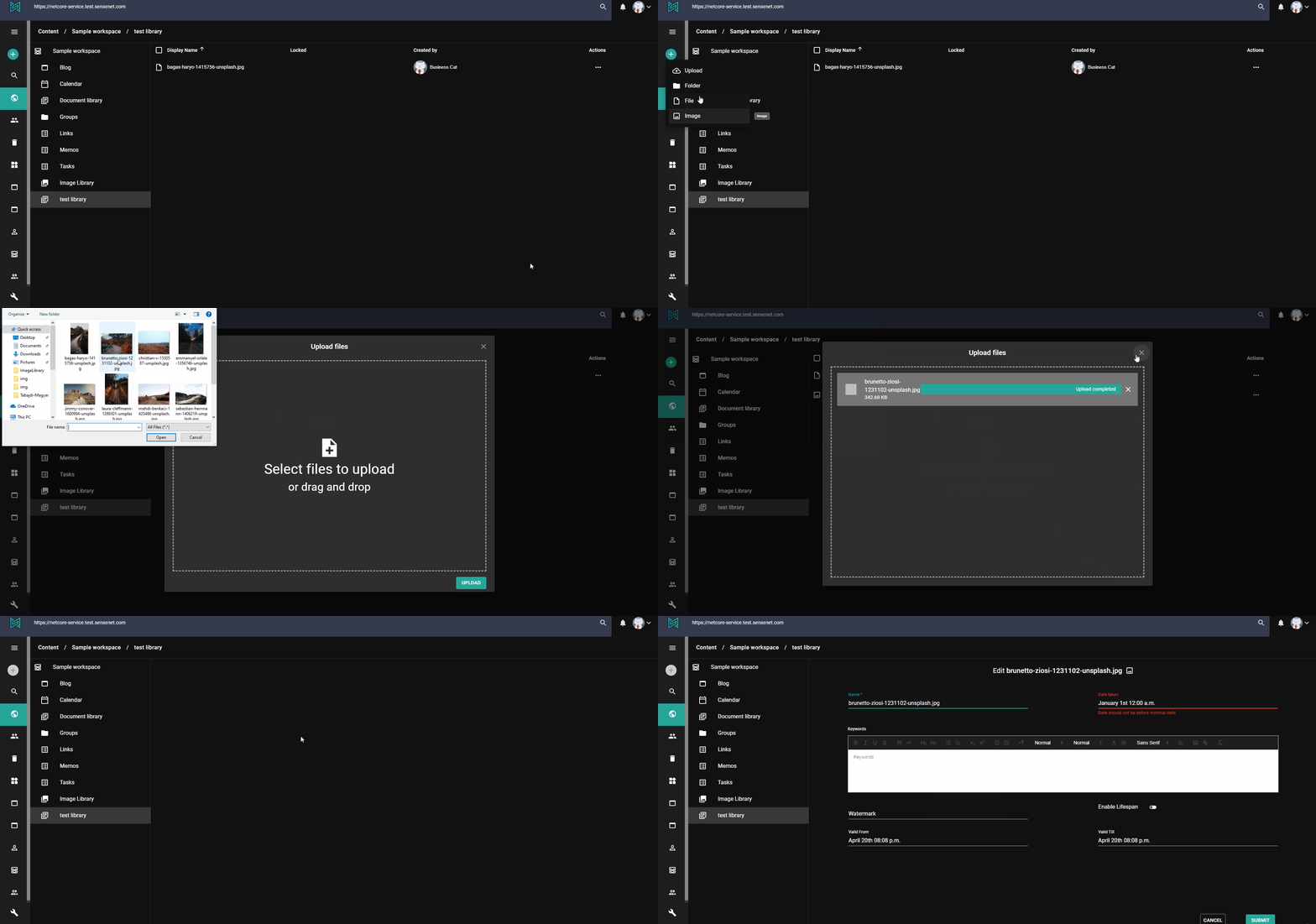
If you now upload an image it will be a simple File content in the sensenet repository not a "real" Image.
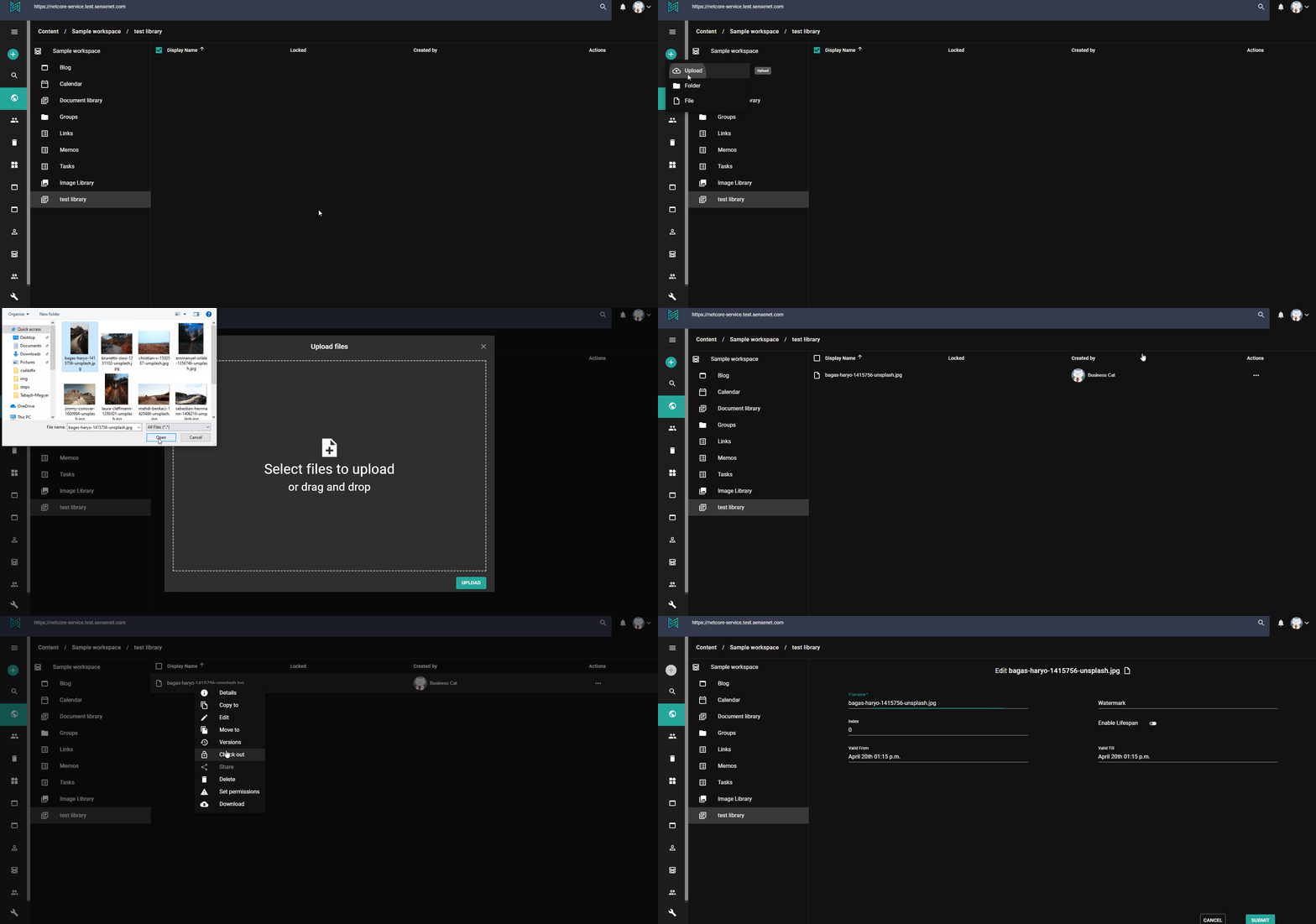
Upload images
How an image can be uploaded with the content type Image? Nothing is simpler, let's add the Image type to the allowed child types list next to File and Folder.
Then Image becomes available in the add new content dropdown and if you upload an image to the library it will be created with the Image type.
Upload content with a custom type
Let's create a custom type inherited from File with some additional fields for Contracts. Create a new content type definition with the following xml:
<ContentType name="Contract" parentType="File" handler="SenseNet.ContentRepository.File" xmlns="http://schemas.sensenet.com/SenseNet/ContentRepository/ContentTypeDefinition"><DisplayName>Contract</DisplayName><Description>Type for agreement documents</Description><Icon>TaskList</Icon><Fields><Field name="ContractId" type="ShortText"><DisplayName>Contract Id</DisplayName><Description>Unique contract Id needed for example for legal proceedings</Description><Configuration><MaxLength>30</MaxLength><MinLength>10</MinLength><Regex>[a-zA-Z0-9]*$</Regex><Compulsory>true</Compulsory></Configuration></Field><Field name="RelatedProject" type="Reference"><DisplayName>Related project</DisplayName><Description>Project to which the contract relates</Description><Configuration><AllowMultiple>false</AllowMultiple><AllowedTypes><Type>ProjectWorkspace</Type></AllowedTypes></Configuration></Field><Field name="ContractValue" type="Number"><DisplayName>Contract value</DisplayName><Description>Value of the contract</Description><Configuration><Digits>2</Digits></Configuration></Field><Field name="RenewalDate" type="DateTime"><DisplayName>Renewal date</DisplayName><Description>The date of renewal of the contract</Description></Field></Fields></ContentType>
This content type definition will include fields inherited from the File type (Binary, DisplayName, etc) and custom ones related to contracts as mentioned in the example above (RelatedProject, RenewalDate, etc).
Open the settings menu and go to Configurations. There you can find a configurations file named Portal.settings. Open it for edit. This json file contains system-wide settings related to extensions and file types. Search for the list of UploadFileExtensions, which is actually an array that contains extension and content type pairs. You can define here how the system should handle the different file extensions when you upload a file with a specific one. As you can see, the common image file extensions are listed and connected to the Image type and File is the default. Add a new key value pair to connect Word documents and your newly created type, Contract. This setting means that if you upload a Word document it will be created as Contract and will have the custom fields as well.
..."UploadFileExtensions": {"docx": "Contract","jpg": "Image","jpeg": "Image","gif": "Image","png": "Image","bmp": "Image","svg": "Image","svgz": "Image","tif": "Image","tiff": "Image","xaml": "WorkflowDefinition","DefaultContentType": "File",},...
Then go to the library and make Contract an allowed child type (this makes it possible to add Contract contents to it).
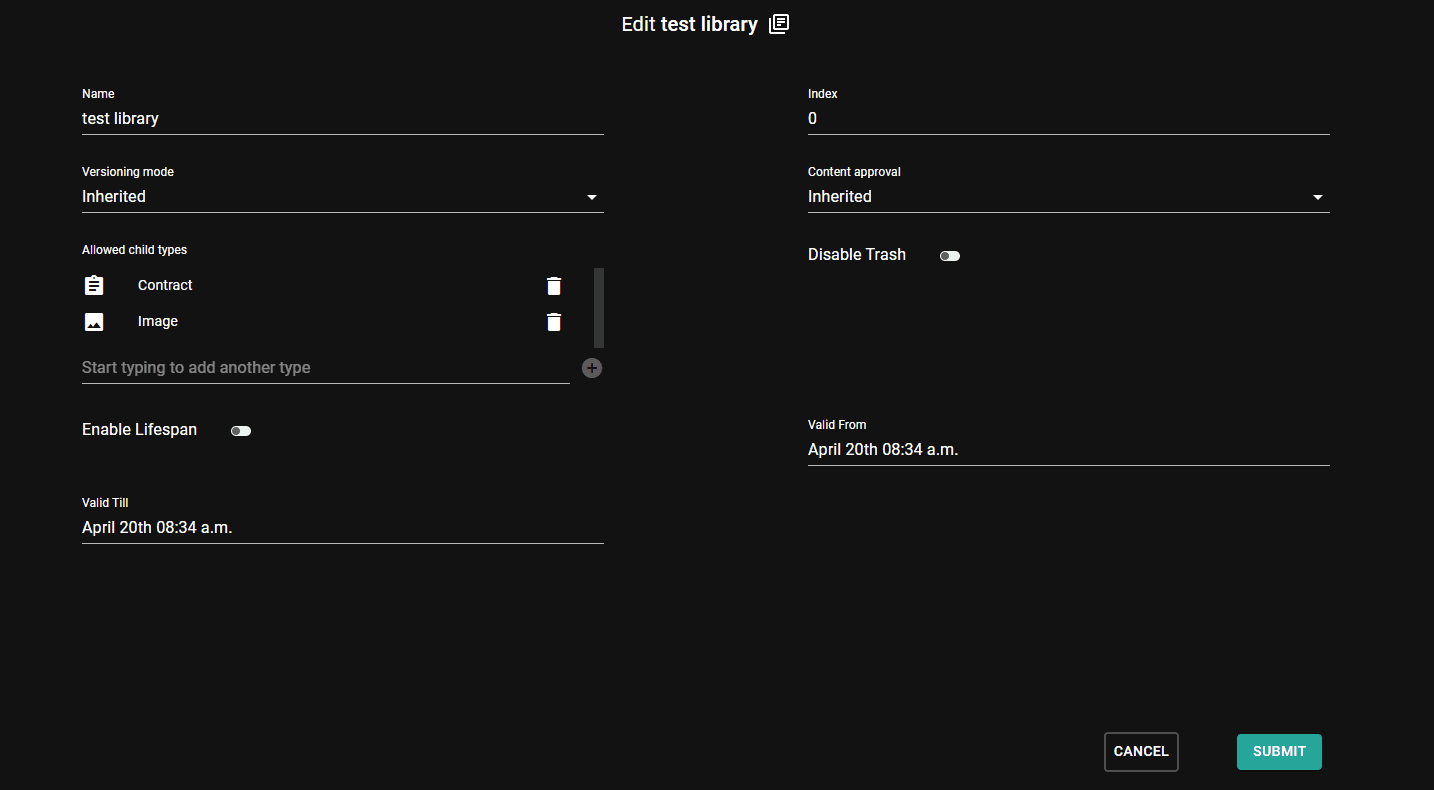
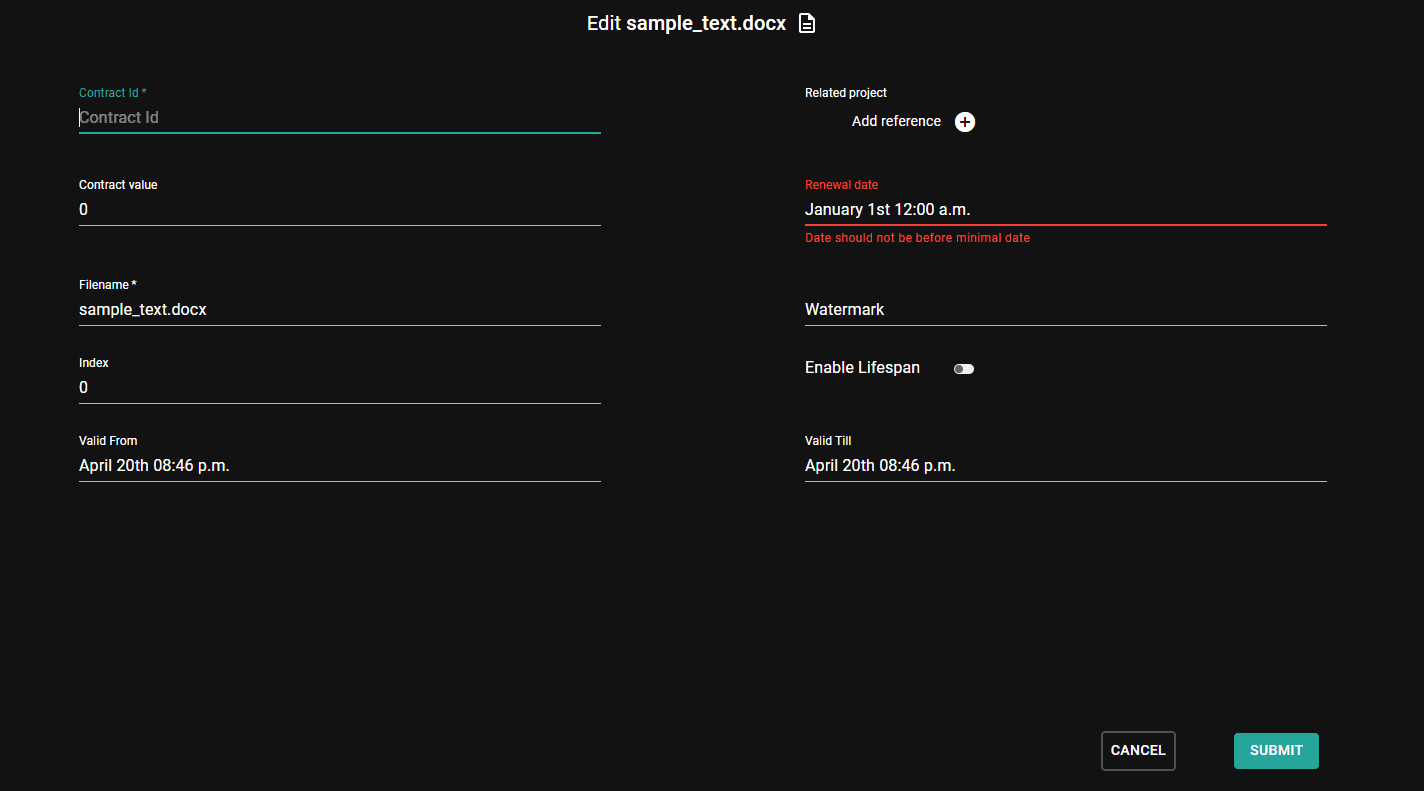
After that if you upload a new file with .docx extension it will be uploaded with the Contract type and you can reach the additional fields when you open it for edit.